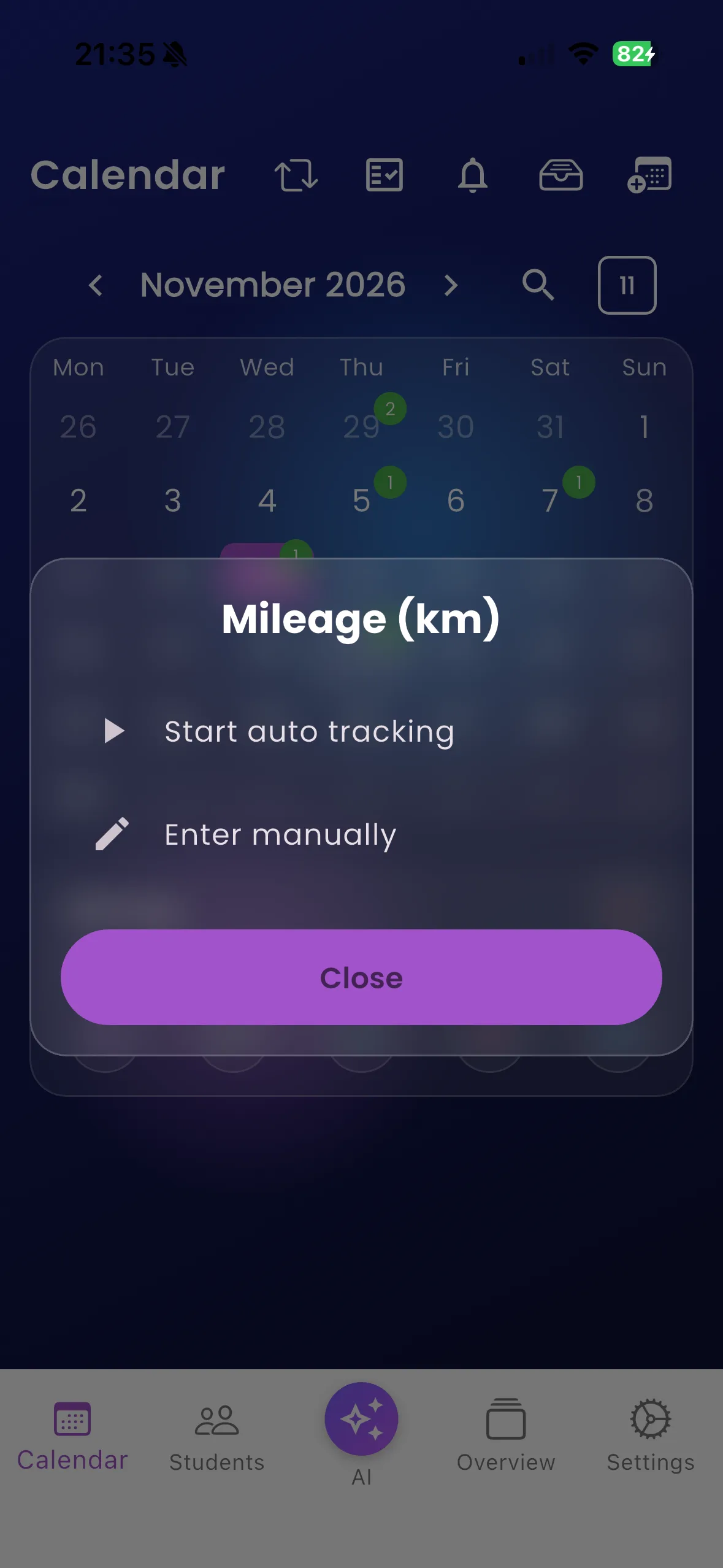
Record lesson mileage
What automatic mileage means
Varium can estimate the distance travelled during a lesson from your phone’s location updates. You start and stop tracking yourself; “automatic” does not mean that every journey is detected or recorded in the background.
Track a lesson
- While safely parked, open the lesson’s mileage action in instructor Calendar.
- Choose Start auto tracking and respond to the location-permission request.
- Keep the app/device operating appropriately during the lesson.
- When safely parked at the end, reopen the mileage action and choose Stop & save.
- Check the saved kilometre value and any synchronisation message.
To record a known distance instead, choose Enter manually, enter the kilometre value and save it.
For example, track a lesson from pickup to finish, then stop before your own unrelated journey. Otherwise that journey may be included in the distance.
Important things to know
GPS is an estimate and can be affected by signal, permissions and device behaviour. Do not assume tracking survives closing the app or that it provides a complete background journey log. Recorded mileage is in kilometres. A locally saved distance and a successful server sync are separate results.
Troubleshooting
For zero or implausible distance, check location permission and signal, and use a checked manual distance when needed. If Mileage sync failed appears, check the stored value and connection before retrying. Do not operate these controls while driving.
Related features
Diary · Dashboard · Permissions