

Collect and make pupil payments
Online payments and payment records
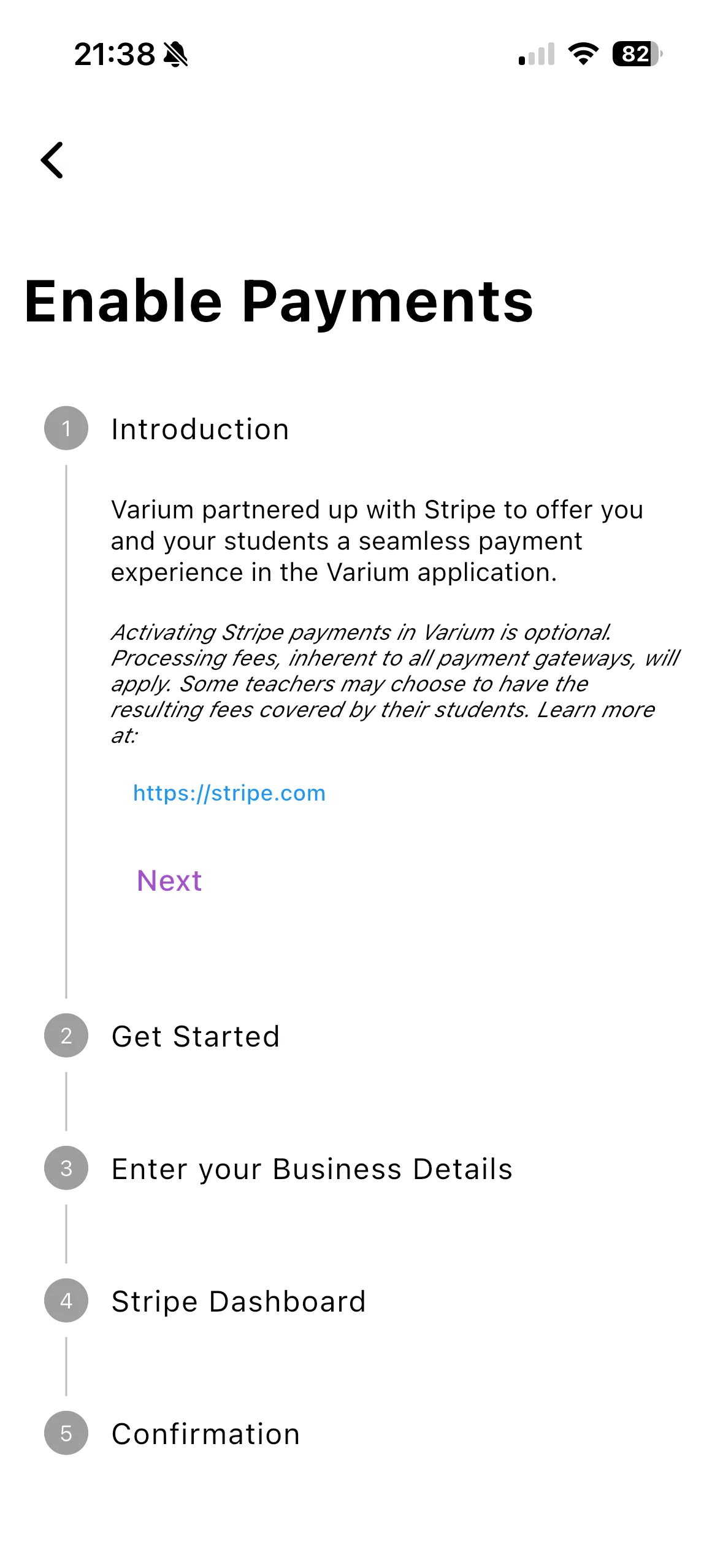
Online pupil payments require the receiving instructor or school to complete its payment setup. This is separate from the instructor’s own Varium subscription and from manually marking a lesson paid.
For instructors
- Open Settings → Enable Payments.
- Follow the account/onboarding screens and the trusted Stripe page they open.
- Complete Stripe’s required business and identity information.
- Return to Varium and check the account’s payment status before asking pupils to pay.
For pupils
Open Payments, review the relevant amount and outstanding lesson, then use the payment action where offered. Check the payment details in the payment sheet and wait for the final result. Refresh afterwards and contact the instructor if the payment and record disagree.
For example, do not send a second payment just because you closed the app after approving the first one. Check its result and your bank/payment history first.
Important things to know
Available payment methods depend on the receiving account, currency, region and Stripe configuration. This guide does not promise every method in every country. School-owned lessons can route payment to the school’s configured recipient. Cancellation or deletion does not itself promise a refund.
Troubleshooting
If no payment option appears, ask the instructor whether payment setup is complete. If checkout fails, retain the non-sensitive error and check with the instructor before retrying. Never send card details or passwords to support in chat or email.
Related features
Record payments · Pupil guide · Subscriptions