Synchronise your device calendar
What calendar synchronisation does
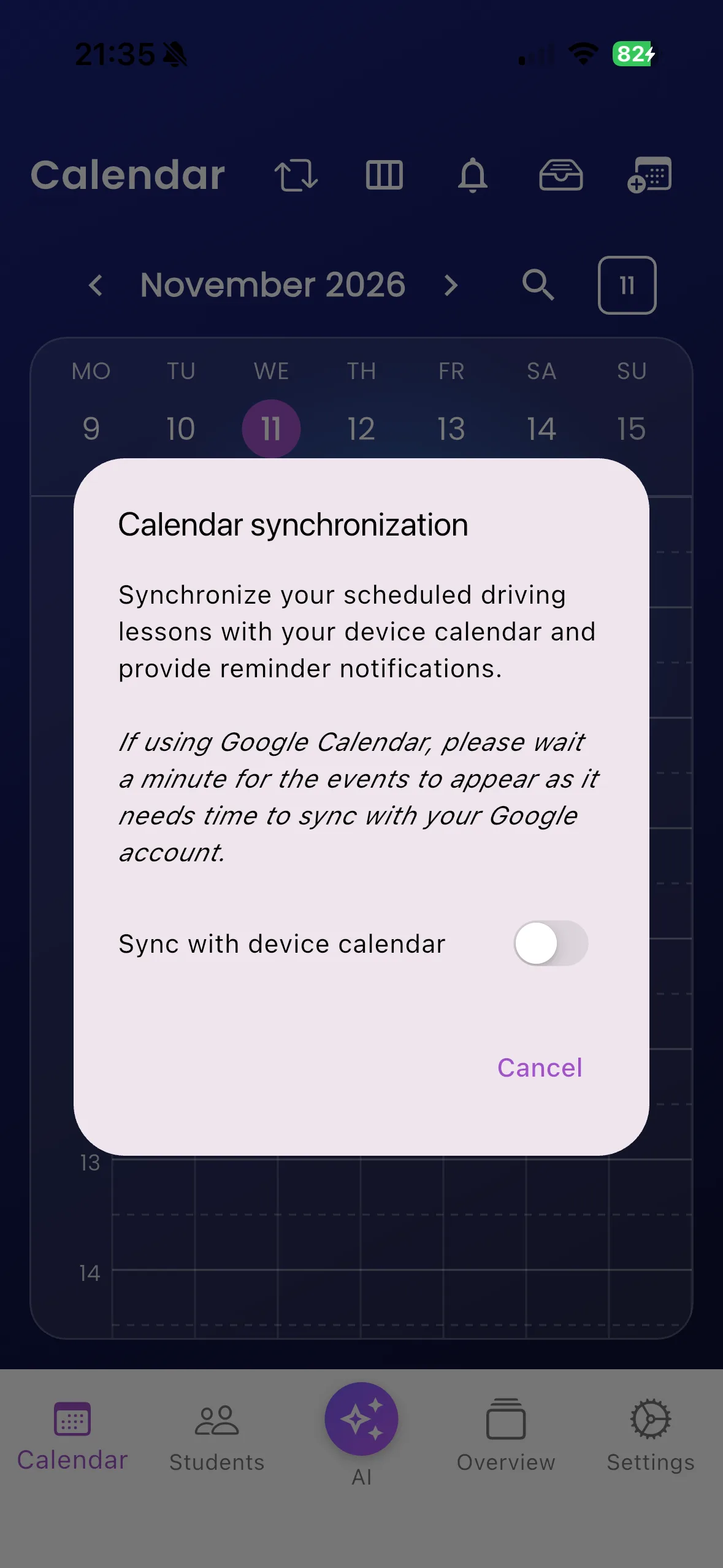
The Calendar synchronisation control makes scheduled driving lessons available in your device calendar. This is useful when you want teaching times alongside other appointments. Varium remains the place to manage the lesson itself.
Set it up
- Open instructor Calendar and choose Calendar synchronization.
- Read the explanation and allow calendar access when requested.
- Follow the selection/confirmation offered by your device.
- Open the device calendar and confirm the expected lessons are visible.
- After changing a Varium booking, allow time for the calendar to update.
For example, an instructor using a Google-connected device calendar may need to wait a minute before the copied events appear in their Google account.
Important things to know
This is not a promise of two-way editing: change lessons in Varium, not only in the external calendar. Device-calendar reminders and Varium push reminders are different mechanisms and can result in separate alerts. The operating system and connected calendar account control part of the synchronisation.
Troubleshooting
If nothing appears, check calendar permission under the phone’s Varium app settings and check which calendars are visible. Refresh Varium, then allow time for the external account to sync. If times look wrong, compare the phone’s date/time settings with the actual booking before making another change.
Related features
Diary · Change lessons · Lesson reminders