

A working day for instructors
Find your main screens
The instructor navigation has five destinations: Calendar, Students, AI, Overview and Settings. Start with Calendar when preparing the day, then use Students for individual pupil work.
Before teaching
- Open Calendar and refresh your schedule.
- Check the dates and times of upcoming lessons. Use the calendar controls to move to another day or return to today.
- Open Students, find the next pupil, and review their contact information, notes and progress.
- Review any lesson requests separately; a pending request is not a confirmed booking.
During and after lessons
Use mileage recording only when safely parked. After the lesson, add factual notes, update progress and record the correct payment status. Open Overview to review your financial records; Dashboard in Settings provides charts.
For example, after a pupil practises roundabouts, record what they did independently, assess the relevant skill, and agree the next goal. AI can improve wording, but the assessment remains yours.
Personalise your working day
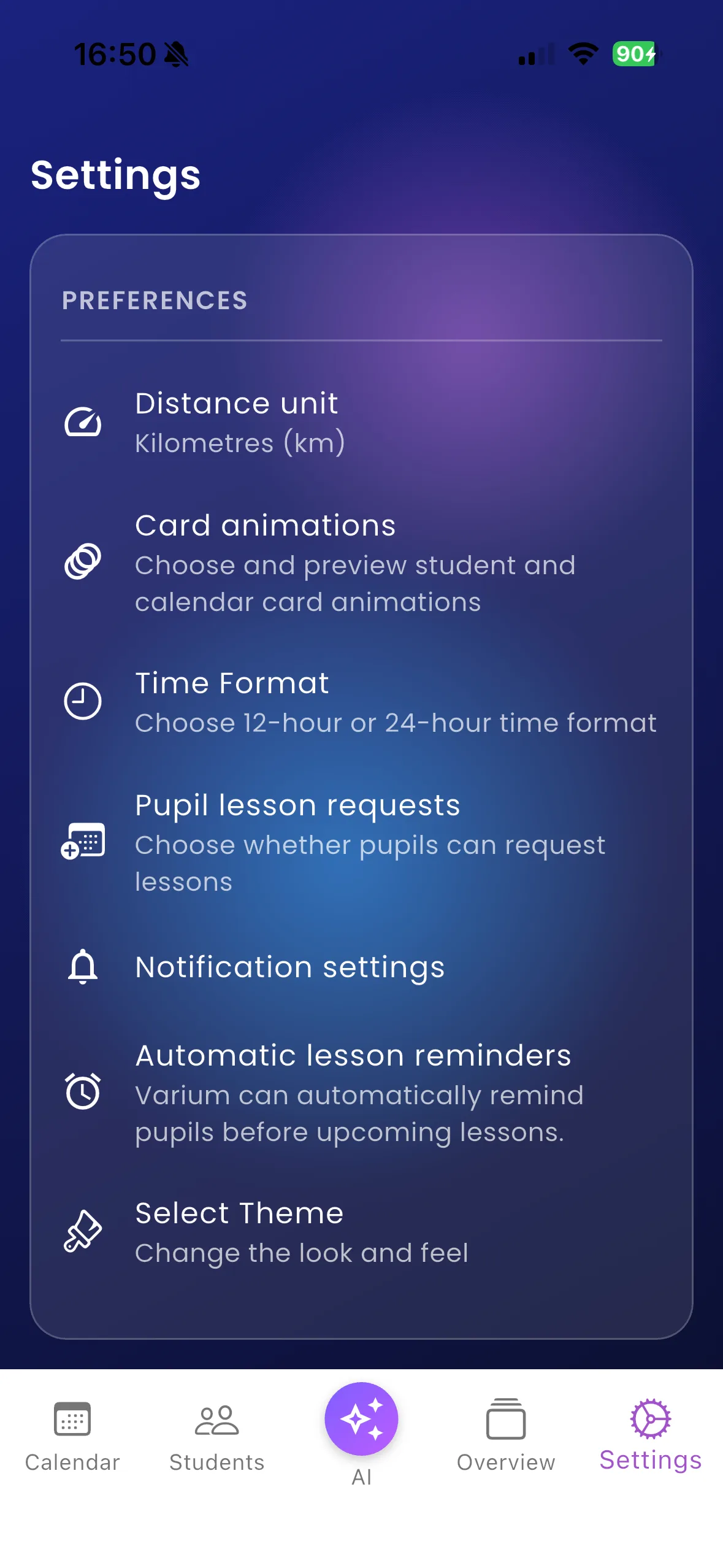
Instructor Settings includes preferences such as time format, distance unit, pupil lesson requests and notification settings. The image shows the preferences menu; it does not show the contents of every settings screen.
Important things to know
Do not operate your phone while driving. School-linked instructors may see records and payment restrictions set by their school. A local screen can show cached information until refreshed.
Troubleshooting
When something looks out of date, refresh the relevant screen before making another change. Confirm the account and pupil before editing.