

Review finance and dashboard charts
Two ways to review your records
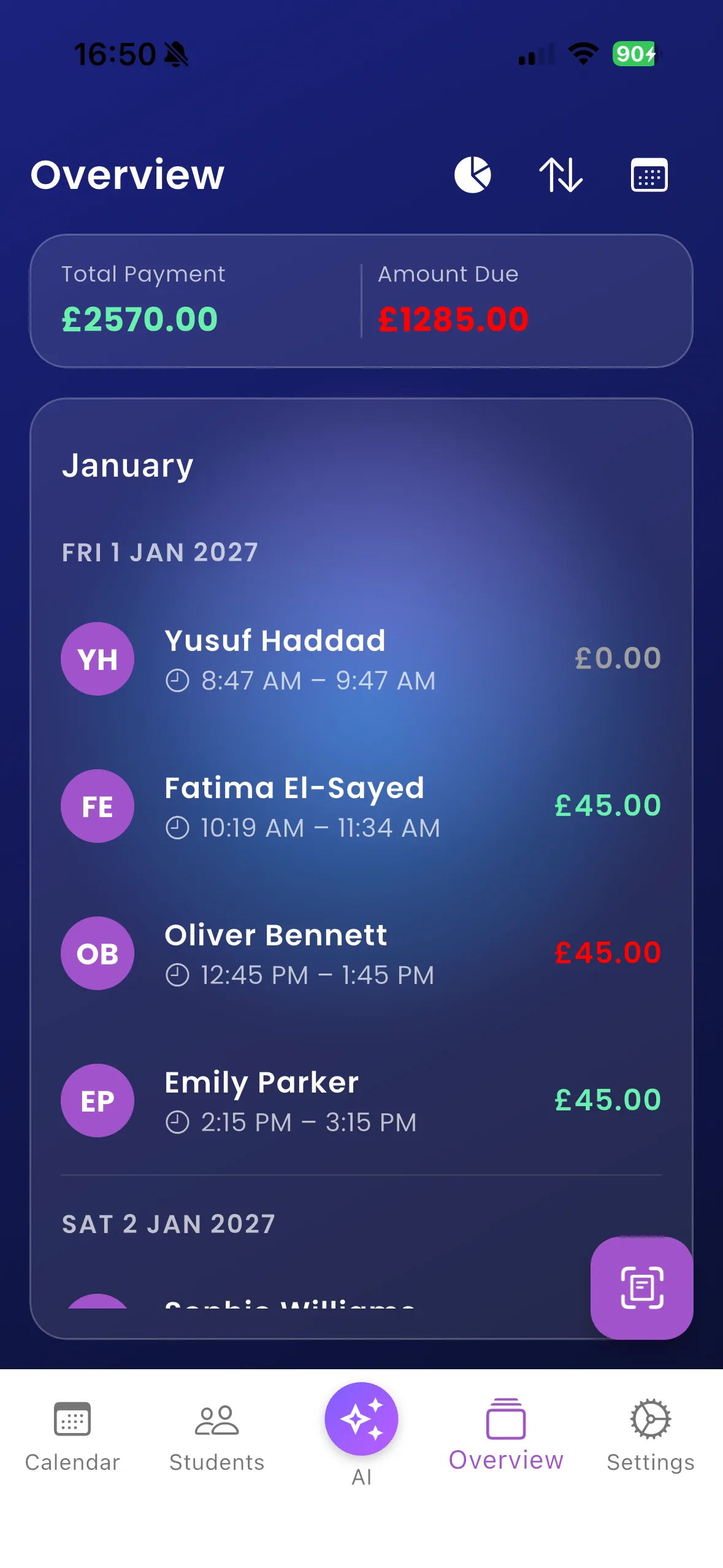
Overview focuses on lesson payment records and amounts due. Settings → Dashboard opens charts for teaching and finance activity, including lessons, revenue, paid versus unpaid amounts, pupils and mileage.
Review your teaching period
- Open Overview from instructor navigation.
- Review the listed records and the recorded payment/amount-due information.
- Open invoice history where needed rather than treating a summary as a bill.
- Open Settings → Dashboard for the chart view.
- Review the date/filter controls offered there and compare the results with the underlying lessons.
For example, a busy week can still have outstanding lesson payments. Compare the lesson activity with the paid/unpaid information before assuming the full lesson value has been collected.
Important things to know
Charts reflect stored records, not independent bank reconciliation. Review currency labels and do not add unlike currencies as if they were converted. Mileage charts depend on mileage recorded for lessons. School-linked account access can affect which records you see.
Troubleshooting
If the view is empty, check the selected period and refresh the source data. If totals differ from expectations, inspect individual lessons, payment statuses and currency first. Report a reproducible discrepancy with dates and non-sensitive details instead of editing records just to make a total look right.