Configure automatic lesson reminders
What reminders do
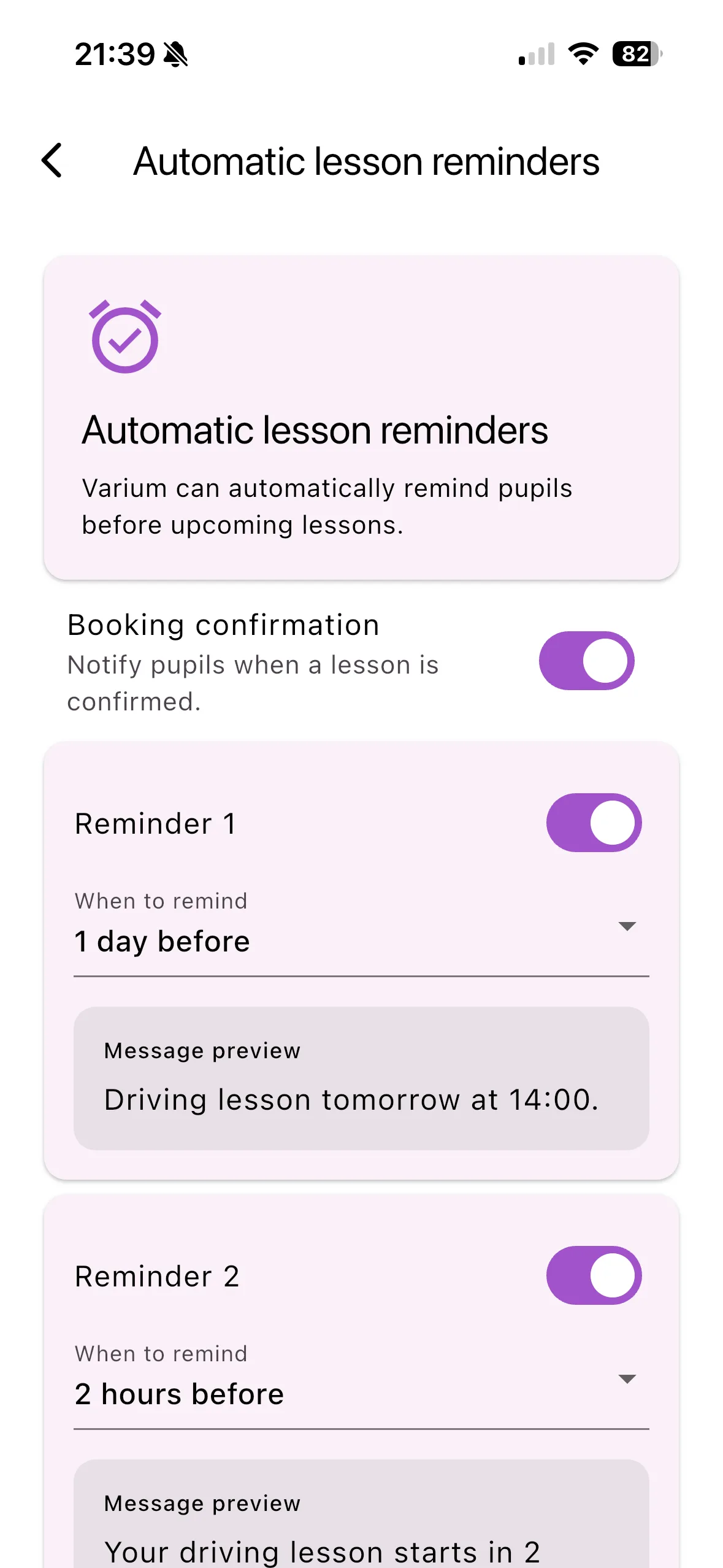
Automatic reminders can prompt pupils before an upcoming lesson. The instructor configures the reminder schedule; the pupil’s ability to receive phone alerts still depends on account/device permission and delivery.
Set up reminders
- Open instructor Settings → Automatic lesson reminders.
- Review the booking-confirmation switch.
- Enable the reminder slots you want, up to three, and choose a distinct timing for each.
- Review the preview text for each reminder.
- Check Lesson timezone. Use the location where the lesson takes place, such as
Europe/AmsterdamorEurope/London, rather than a fixed abbreviation. - Select Save reminders and wait for confirmation.
For example, choose one reminder the day before and another two hours before a lesson. Check the saved timings rather than relying only on the example previews.
Important things to know
Initial controls include one-day and two-hour timings, but loaded account settings determine the actual configuration. The app can suggest the device timezone when none is configured; review it before saving. Travel and daylight-saving changes make this especially important. Cancelled, deleted or otherwise ineligible lessons should not be treated as scheduled reminders.
Troubleshooting
If saving fails, check the timezone spelling and that active timings are distinct. If reminders arrive at the wrong hour, compare the booking time and saved lesson timezone. For missing phone alerts, check pupil notification permission as well as instructor reminder settings.
Related features
Push notifications · Calendar synchronisation · Delivery troubleshooting