Create lessons and repeated bookings
What can you plan?
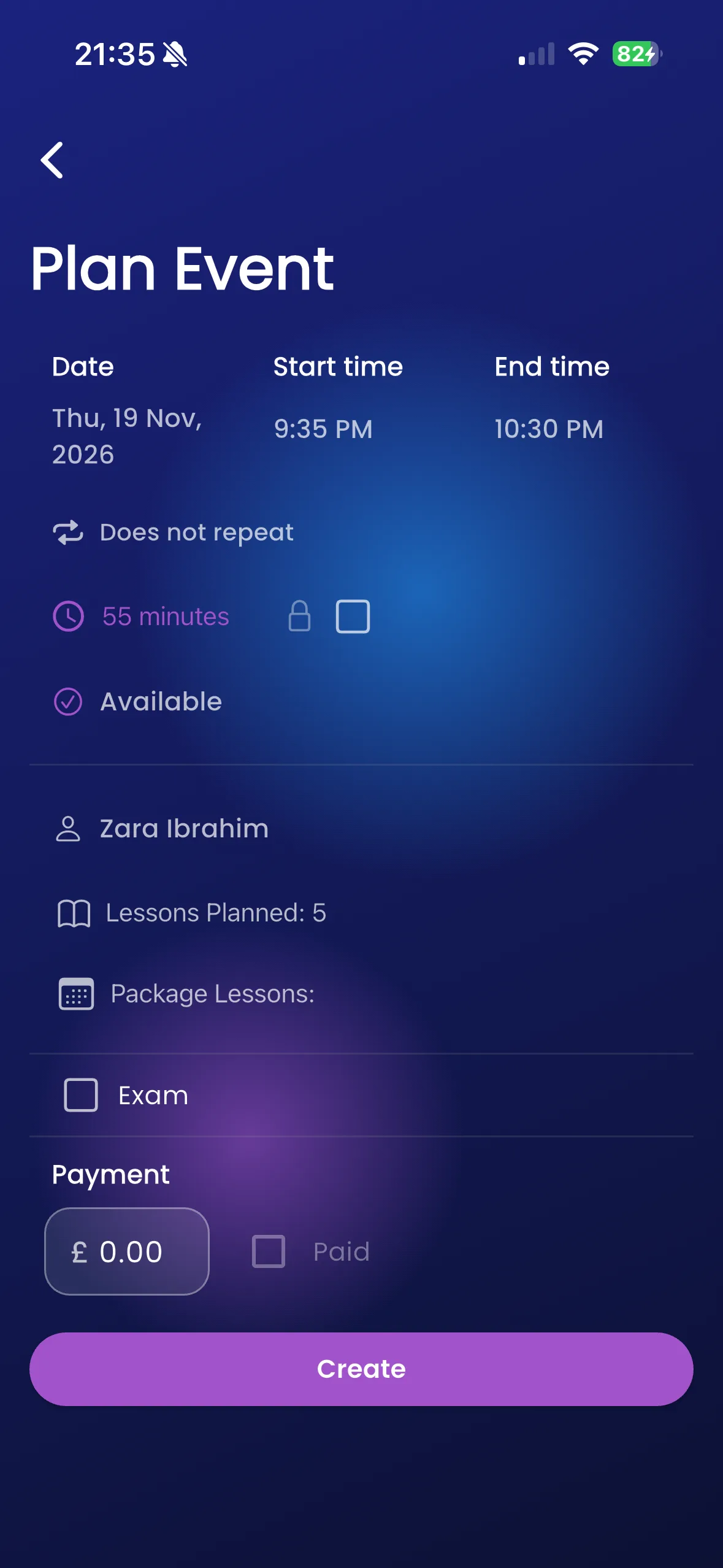
The lesson planner creates a driving lesson or an unavailable period. For lessons, you choose a pupil and review the dates, time, payment and related options before saving.
Create a lesson
- Open Calendar and choose the add/planner action.
- Select the pupil. If verification is required, ask the pupil to sign in first.
- Choose the start date and time, then the end time or duration.
- Check the amount, currency and Paid selection. Only mark a payment as received when it actually has been.
- Leave Does not repeat for one lesson, or choose Every day or Every week and select the date range.
- Review the planned events and select Create. Wait for confirmation, then refresh the calendar.
For example, a weekly Tuesday lesson over a selected range creates multiple dated bookings. Check the end date carefully so you do not reserve more sessions than intended.
Important things to know
The planner checks overlapping events and validates start/end times. A repeated booking creates dated lessons; this guide does not promise a single control to edit an entire series. A selected package and a paid marker are separate from online card collection.
Troubleshooting
If the timeslot has been taken, refresh and choose another time. If a pupil needs verification, resolve that before retrying. A capacity limit is a real account constraint; contact support before deleting useful teaching records to make room.
Related features
Change lessons · Packages · Record payments