

Connect a pupil account
How pupil accounts work
Your instructor or school creates your pupil record. The pupil sign-in screen is separate from instructor sign-in. You do not need to create an instructor account to view your lessons.
Connect and sign in
- Ask your instructor to confirm which email address is attached to your pupil record.
- Check your email, including junk mail, for the account message sent when your instructor creates the pupil record. Use the supplied login password and keep it private.
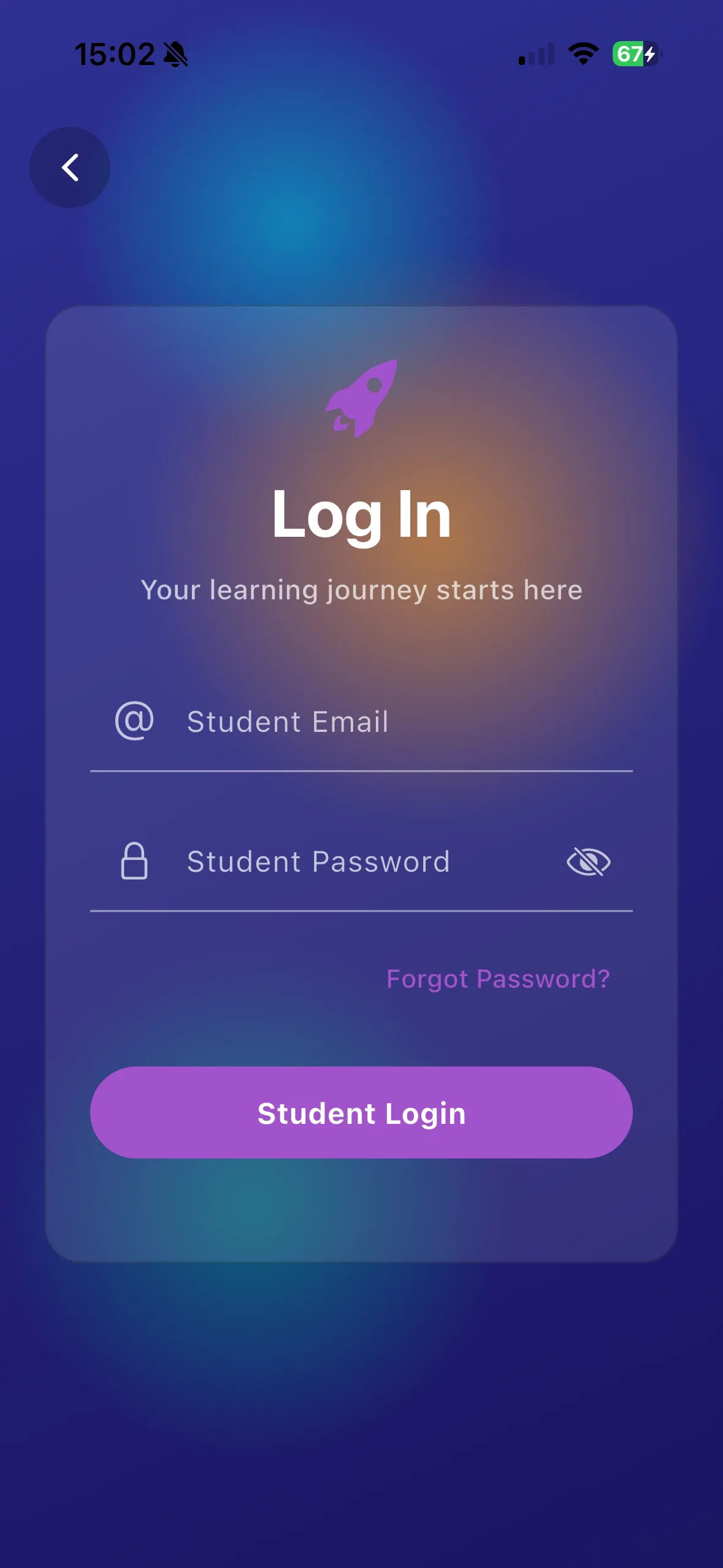
- Open Varium, select Student, and enter your pupil login details.
- If you cannot access an already verified account, use Forgot Password? on the pupil sign-in screen. If you have never completed your first login, ask your instructor to check your email address and account message.
- After signing in, check Calendar, Progress, Notes and Payments.
- Open Settings to choose your preferred language and appearance.
For example, a pupil whose school has already created a record should use that record’s email instead of trying to register a separate teacher profile.
Important things to know
Instructors may be unable to schedule a lesson until the pupil has logged in and the account is verified. A school pupil may have a choice of eligible instructors when requesting a lesson; independent pupils use their connected instructor.
Troubleshooting
If your lessons are missing, refresh the calendar and ask the instructor to check the connected account. If a pupil account was deleted, password recovery will not restore it automatically. Do not share your password with another pupil.