Set bookable hours and unavailable time
Two kinds of availability
Weekly bookable hours define when pupils may request lessons. Unavailable diary entries block time you cannot teach. An empty calendar alone does not guarantee that pupils can request any time they choose.
Set weekly hours
- Open Settings → Pupil lesson requests.
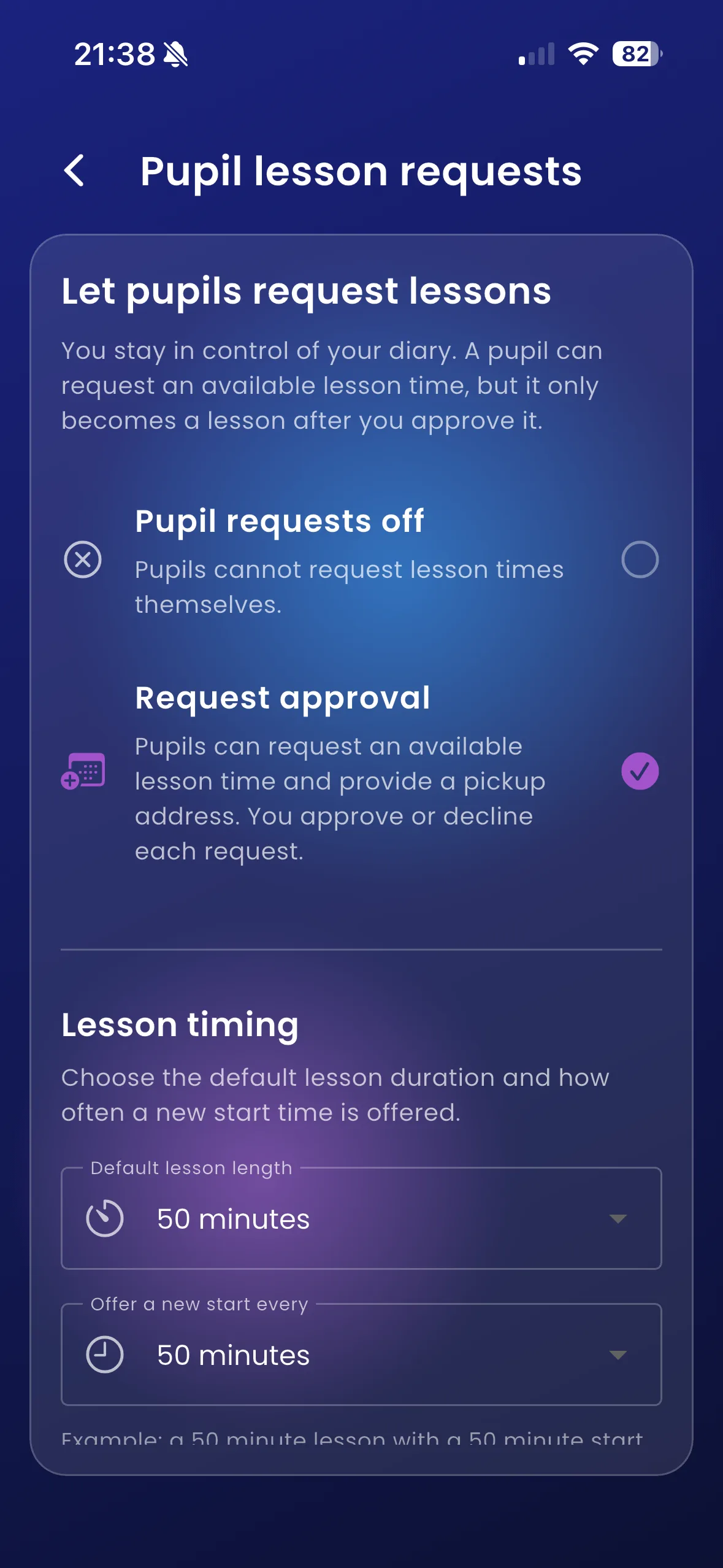
- Enable requests if you want pupils to send them for approval.
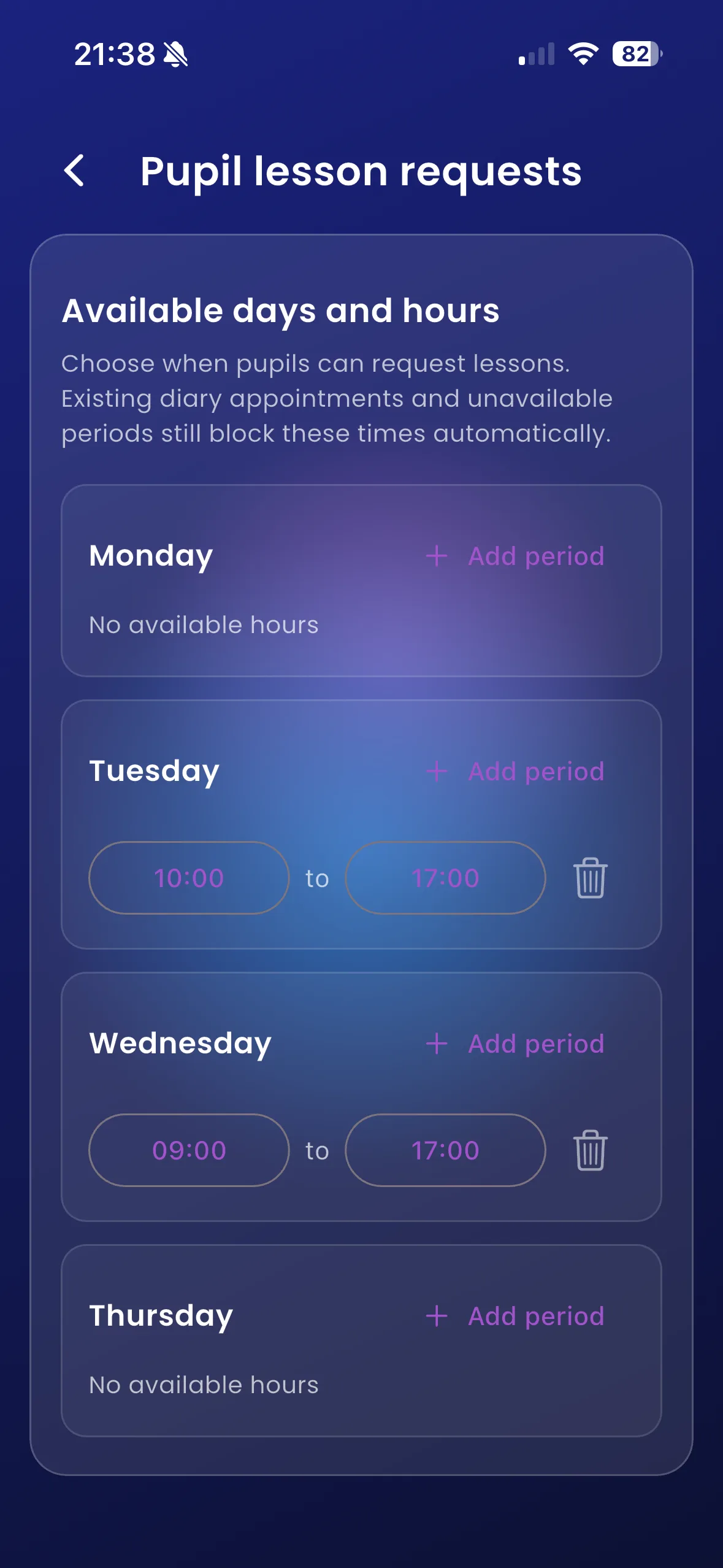
- Review the available-hours section for each weekday.
- Use Add period, choose start and end times, and remove periods you do not offer.
- Save the available hours and wait for the update confirmation.
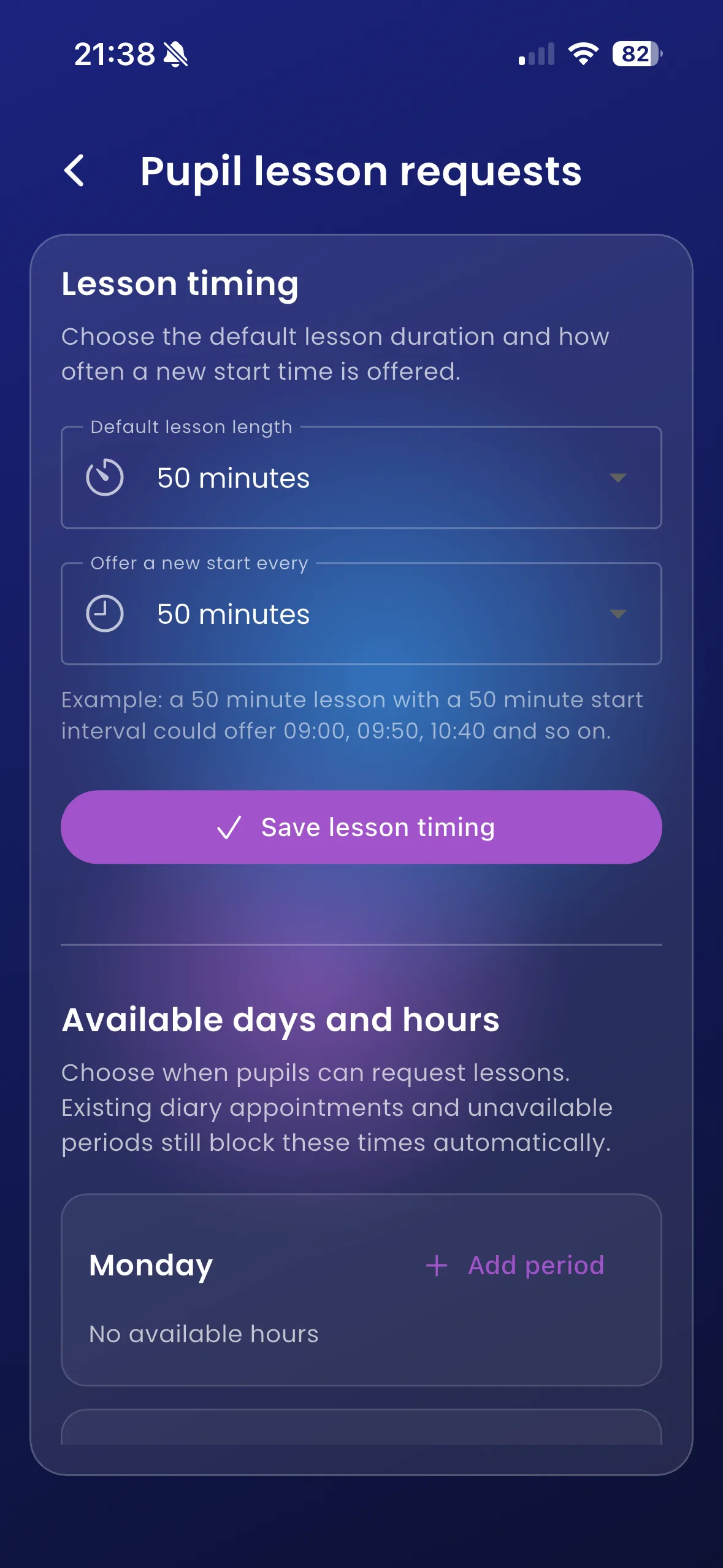
- Review lesson duration and start-interval settings, then save those changes too.
Block a particular period
Use the Calendar planner’s availability selection to create an Unavailable period for time away. Review the dates and hours as carefully as a lesson.
For example, offer Monday 09:00–12:00 and 13:00–17:00, then block an appointment next Monday afternoon. Pupils should only choose from the resulting available times.
Important things to know
Flutter’s booking-settings update supports off or request mode, not an instant-booking switch. Already-booked lessons, unavailable time and the configured duration affect which slots are offered.
Troubleshooting
If pupils see no slots, check requests are enabled, a suitable period exists, and the slot can hold the full lesson. Refresh after saving. The pupil screen looks ahead seven days, so later availability will not appear immediately.
Related features
Lesson requests · Diary · Smart Gaps
Choose request mode and lesson timing
Requests can be switched off or sent for approval. The duration and offered start-time interval are configured separately from the weekly available hours.